Calendar / Schedule
Tasks, meetings, deadlines, events, reminders, the bucket view, the timeline view, auto-refresh, and project filtering.
Calendar / Schedule — Meetings, Tasks, and Deadlines
The Schedule page (/calendar) is your worker's time surface. It's where meetings, tasks, deadlines, events, and reminders live — bucketed by when they matter.
What Goes on the Schedule
| Item type | Examples |
|---|---|
| Tasks | "Email John about the contract", "Review the Q4 numbers" |
| Meetings | "Call with Sarah", "Discovery call with Acme" |
| Deadlines | "Submit proposal by Friday", "Tax filing due 31 Jan" |
| Events | "Conference talk", "Team offsite" |
| Reminders | "Follow up with lead", "Check in with team" |
Most of these are created by the worker when you ask it in chat. You can also add them manually.
The Schedule Page
The page is divided into a vertical timeline of time buckets:
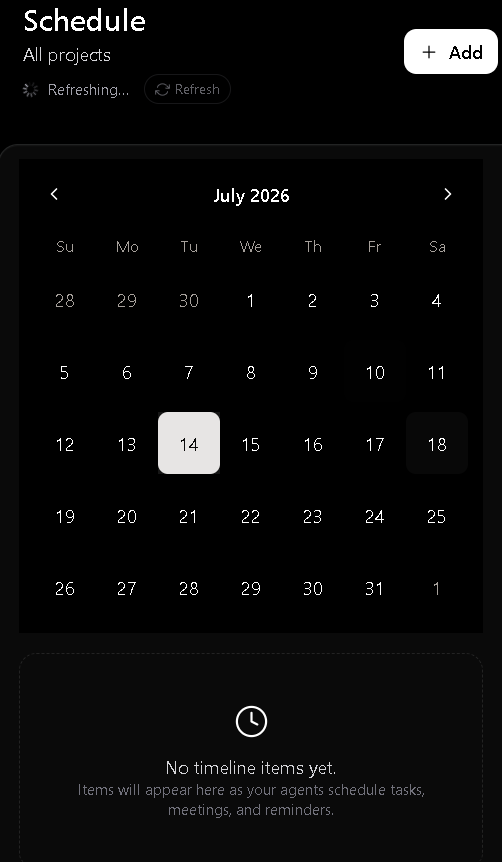
Each item shows its type icon, time, title, and a status badge.
Why bucketed? Time-based work is best understood by urgency, not by absolute date. "Active" and "Today" jump out; "Later" hides the noise.
Adding Items Manually
Click the + Add button (top right) to create a new item. You can pick the type first from a menu.
| Type | Fields |
|---|---|
| Task | Title, due date, time (optional), notes, project (optional). |
| Meeting | Title, date, time, duration, attendees, location/link, project. |
| Deadline | Title, due date, time (optional), project. |
| Event | Title, start, end (or all-day), project. |
| Reminder | Title, trigger time, project. |
Click Add to save. The new item appears in the appropriate bucket.
The worker can do this for you. Just chat: "Add a task to call John tomorrow at 10am." The worker creates the item and the schedule updates automatically.
Time Buckets — How Items Move
| Bucket | When an item lands here |
|---|---|
| Active | The item is currently in progress (e.g. a task you marked as started, or a meeting happening right now). |
| Today | Due or scheduled any time today, but not yet active. |
| Tomorrow | Due or scheduled any time tomorrow. |
| This Week | Due before the end of the current week (Sun). |
| Later | Anything further out. |
| Completed | Marked done (manually or auto when past due). |
The buckets are not configurable. They are a fixed view that re-computes on each render. Items move automatically as time passes.
Item Detail Panel
Clicking an item opens a detail panel (slide-over from the right) with:
- Title and type
- Date / time
- Notes / description
- Project (if assigned)
- Status
- Actions: Edit, Mark done, Delete
Completing Items
Two ways to mark an item as done:
- Click the circle/checkbox on the item in the list view.
- Open the detail panel and click Mark done.
Completed items move to the Completed bucket. They remain visible there until you delete them, but they don't count as "active" anywhere.
Recurring Items
Recurring items (e.g. a weekly standup) are supported. When adding a meeting or reminder, look for the "Repeat" field. Options:
- Daily
- Weekly (specific day)
- Monthly (specific day)
- Custom cron expression (advanced)
Recurring items create individual instances on the schedule, each of which can be completed independently.
Project-Scoped Items
Each item can be associated with a project. The Schedule view shows project items in the same buckets, but you can filter by project using the Project filter at the top of the page.
When the worker creates items via chat, it associates them with the currently active project (the one in the chat breadcrumb).
The Timeline View
A second view (the Timeline) shows the same items on a horizontal time axis, useful for spotting collisions and time gaps.
- Hours of the day on the x-axis
- Items as colored bars
- All-day events as a band at the top
- Today highlighted
Auto-Refresh
The Schedule page updates automatically whenever items change — no manual refresh needed.
Reminders vs Deadlines vs Tasks
A quick comparison so you pick the right type:
| Type | Best for | Has a time? | Completion? |
|---|---|---|---|
| Task | "Do this thing" — single action. | Optional due date/time. | Yes. |
| Meeting | Time-blocked calls/events. | Required start + duration. | Yes (auto on end). |
| Deadline | Hard due date for an external commitment. | Due date/time. | Yes. |
| Event | Multi-hour or all-day blocks. | Start + end. | Yes. |
| Reminder | "Don't forget to…" nudges. | Trigger time. | Yes. |
Integration with the Worker
The worker can create and complete schedule items on your behalf. Just ask in chat: "Schedule a meeting for tomorrow at 2pm" or "Mark the Q4 review as done." Changes appear instantly.
Frequently Asked Questions
Q: Can the worker schedule a meeting with my real calendar (Google Calendar)? A: Yes — install the Google Calendar app from the Toolhub. Then the worker can create events on your real Google Calendar in addition to the in-app schedule.
Q: Can I share my schedule with someone else? A: Indirectly, via project membership. If you add a teammate to a project, they see the project-scoped schedule items.
Q: Can I bulk-complete items? A: Not in the UI today. You can complete them one at a time, or ask the worker in chat: "Mark all my Q3 tasks as done."
Q: Can I import events from Google Calendar / Outlook? A: Yes, via the Toolhub integrations. Once installed, the worker syncs events into the Schedule view.
Q: What time zone are items in? A: Your browser's local time zone. The backend stores UTC; the UI converts.
Q: How far ahead can I schedule? A: There's no hard limit. Items in the "Later" bucket can be months or years out.