Mail — Your Worker's Inbox & Outbox
The worker's inbox & sent, compose, reply, forward, polling, Openloop, outbound limits, and signature.
Mail — Your Worker's Inbox & Outbox
Your AI worker has its own email address (<your-prefix>@ai.allorc.com). The Mail feature gives you a full read/send/reply/forward experience for that mailbox.
Why Mail?
A worker that has its own inbox can:
- Receive messages from customers, leads, and teammates, and surface what matters.
- Send emails on your behalf (cold outreach, follow-ups, scheduling).
- Maintain a thread history the worker can reference in future conversations.
- Trigger background agent activity when an email arrives (e.g. auto-classify, auto-reply).
The mailbox is a real, hosted mailbox — anyone can email your worker.
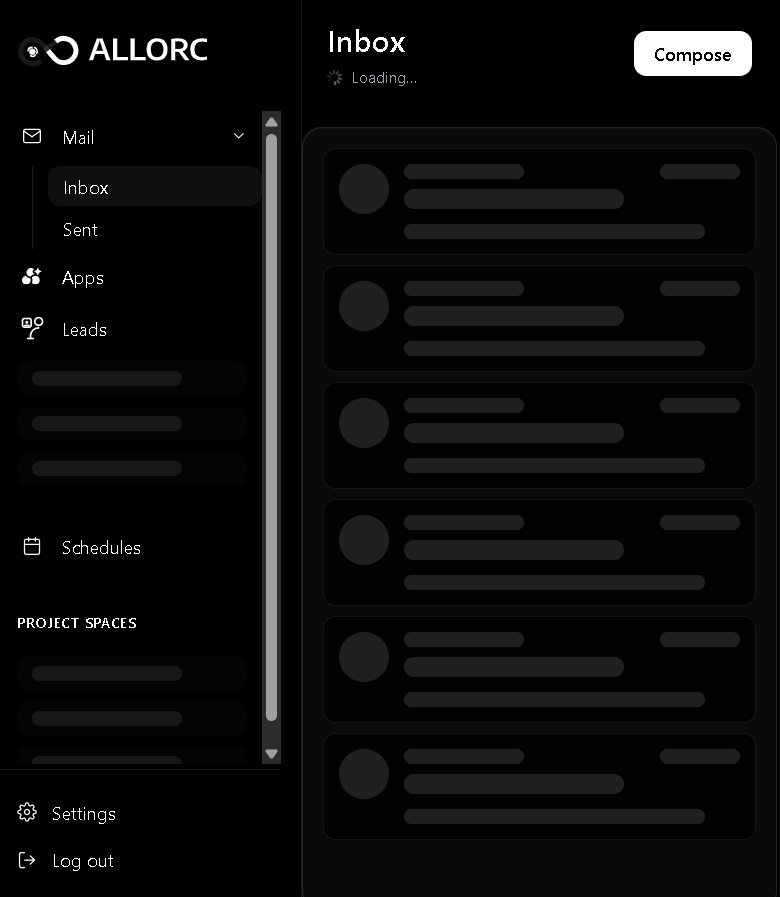
The Mail Sidebar
In the app's left sidebar, the Mail section is collapsible. Expand it to see:
- Inbox —
/inbox - Sent —
/sent
New messages appear automatically — no manual refresh needed.
Inbox — /inbox
The Inbox lists every email the worker has received. Each row shows:
- Sender name (and email)
- Subject
- Preview of the first 1–2 lines of the body
- Time received (relative, e.g. "2h ago")
- A small unread indicator (blue dot or bold text)
Clicking a row opens the full thread.
Sent — /sent
A list of every email your worker has sent. Same row format as the Inbox, but the "from" is always your worker's address.
Composing a New Email
To start a new email that isn't a reply:
- Click + Compose (typically in the Inbox/Sent top bar or the Mail section).
- A compose window opens with fields:
- To — one or more recipients
- Cc / Bcc (collapsible)
- Subject
- Body — rich text editor
- Click Send (or hit Cmd/Ctrl+Enter).
You can also ask your worker in chat: "Send an email to john@acme.com with subject 'Q4 proposal' and a friendly intro."
Forwarding an Email
From a thread's action bar, click Forward. A forward window opens with:
- Pre-filled subject:
Fwd: <original subject> - Pre-filled body: the quoted original message
- A new To field for the recipient
Send the same way as a new email.
Polling, Real-Time, and Notifications
New messages appear in the sidebar with an unread count badge on the Mail item. Browser push notifications are also supported — enable them when prompted, or via Settings.
Behind the scenes, when an inbound email arrives, the worker is notified automatically so it can decide to reply, classify, or trigger background work.
Outbound Limits
Your monthly outbound email quota is shown in Settings → Mail Outbound:
- Trial: 50 outbound emails / month
- Starter: 500 outbound emails / month
When you hit the limit, the Send button is disabled and a banner appears: "Monthly email limit reached. Upgrade or wait for the next cycle."
The limit applies to emails the worker sends — the limit is per-account, not per-worker (since there's one worker per account).
Search and Filters
The Inbox and Sent views each have a search bar at the top. Search matches:
- Sender name and email
- Subject
- Body content
- Date range (use
before:,after:)
There are also basic filters:
- Unread — show only unread threads
- Starred — show only starred threads (right-click a row to star)
- With attachments — show only threads that have file attachments
Real-Time Notification Feed (Openloop)
Every email the worker sends or receives produces an entry in the Openloop feed (the bell icon in the top bar). This is the best place to see email activity when the Mail tab isn't open.
Email Signature and Identity
The worker sends mail with:
- From name — the worker's name (set in Settings → Agent)
- From address —
<prefix>@ai.allorc.com(set during onboarding) - Signature — by default:
-- <Worker Name>, with a footer line "Sent via Allorc".
You can ask the worker in chat to change its signature: "From now on, sign all your emails as 'Best, Nora — Your AI Assistant'". The signature is then used in all subsequent sends.
Frequently Asked Questions
Q: Can I see the worker's email in my normal Gmail/Outlook inbox?
A: No. The mailbox is a separate, dedicated *.@ai.allorc.com address. You read it in the Allorc Mail UI.
Q: Can I reply from my personal email instead? A: The worker handles replies from its own mailbox. To reply personally, copy the message to your own email client and respond from there.
Q: Can the worker send to anyone? A: Yes, but rate-limited per your plan. Each send counts against your monthly outbound quota.
Q: What happens if someone emails the worker while it's offline? A: The message is queued and processed when the worker is next active.
Q: Can I forward an email to a non-Allorc address? A: Yes. Use the Forward action in the thread's action bar.
Q: Are emails encrypted? A: Yes — in transit and at rest.
Q: Can I attach files to a sent email? A: Yes — the rich text editor has an attachment button.