Spaces, Projects, and Skills
The structural backbone; creating spaces & projects, the context drawer, skills, audit log, workflow, deletion.
Spaces, Projects, and Skills
The structural backbone of your work in Allorc. Spaces group things; Projects are where work happens; Skills teach the worker new tricks.
The Hierarchy
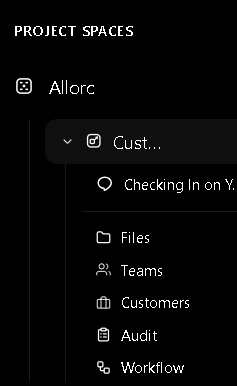
- Space — a container for projects, teams, and customers. One user can have multiple spaces (e.g. one for consulting work, one for a startup). Spaces do not share projects, but they share the same AI worker.
- Project — a focused body of work. Each project has its own:
- Sandboxed Python environment for code execution
- File system (browsable via the side panel)
- Skills (markdown files that teach the worker)
- Memory of past conversations and people
- Threads (chat conversations)
- Teams (internal collaborators)
- Customers (external leads/contacts)
- Worker — the AI itself. Lives across all your spaces and projects. Same worker, different context per project.
Why a hierarchy? Different work has different context. By scoping the worker's memory and tools to a project, you avoid the worker mixing up customers from one project with another, or applying the wrong tone to a different industry.
Spaces — /spaces
The Spaces page is the top-level view. Each row shows:
- Space name
- Counts:
Projects N | Teams N | Customers N - A button to enter the space
Projects — /spaces/projects
A project is where real work happens. The Projects page (filtered to the active space) shows each project as a card with:
- Project name
- Description (first 100 chars)
- Last activity
- An Open button (enters the project)
Project Actions in the Sidebar
Each project, when expanded in the sidebar, shows nested sub-actions:
| Sub-action | What it does |
|---|---|
| Threads | The list of chat threads in this project. |
| Files | The project's file system (opens the side panel). |
| Teams | Internal teams and members for the project. |
| Customers | External contacts (leads/clients) for the project. |
| Audit | Recent activity log (events, tool calls). |
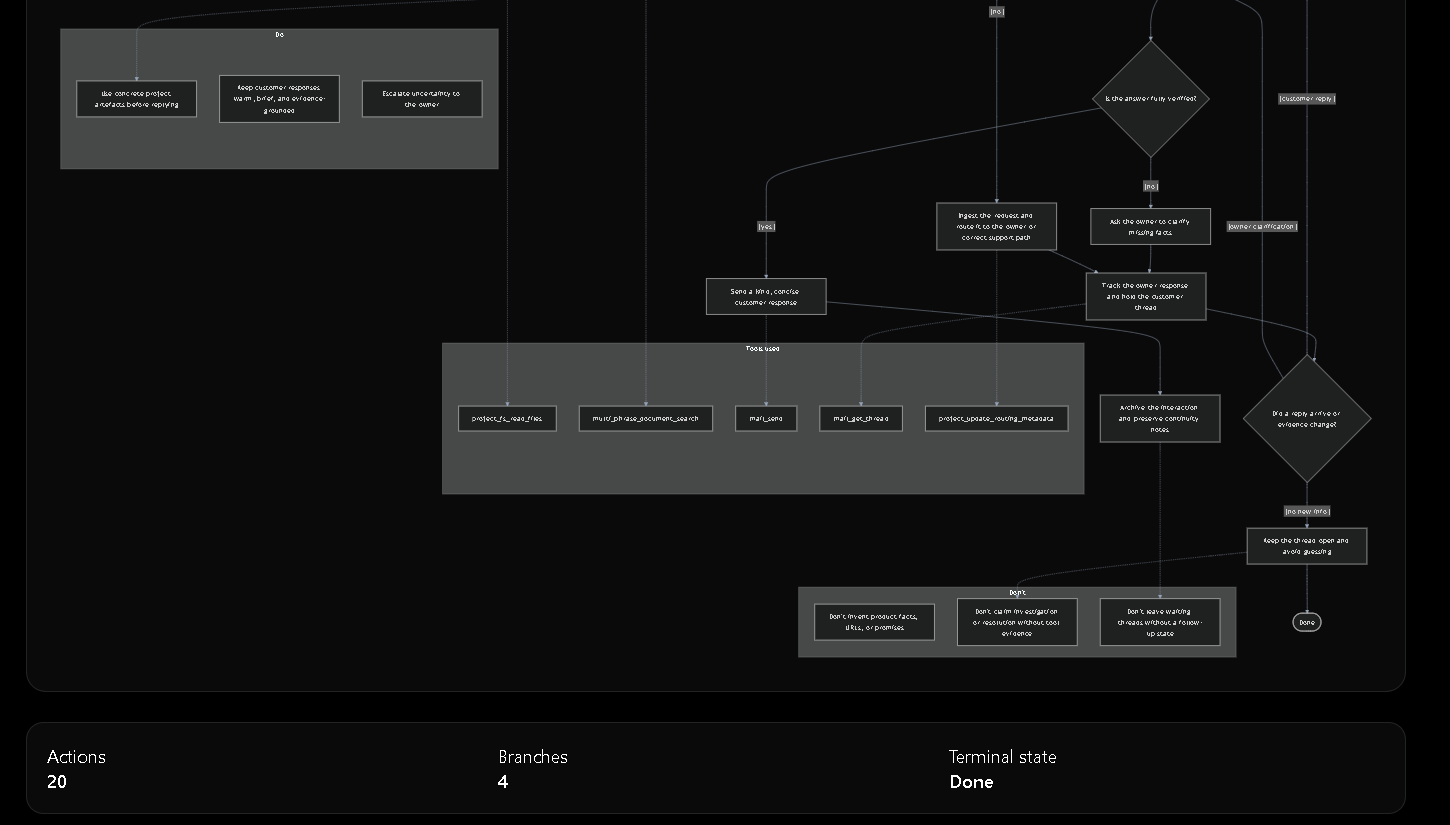
| Workflow | A Mermaid-rendered visual diagram of the project's workflow. |
The Side Panel
When you click Files, Teams, or Customers in the sidebar, a panel slides in from the right with three tabs:
| Tab | What you can do |
|---|---|
| Files | Browse the project file system. Create folders, upload files, edit text files, download. |
| Teams | List/create internal teams. Invite members with roles (admin / member / viewer). |
| Customers | Search and list customers. Add new ones manually. (Until the project env is ready, the "New Customer" button is disabled.) |
The drawer is per-project. Closing it returns you to wherever you were (chat, calendar, etc.).
Project Settings Dialog
Open a project's settings by clicking the ⚙ next to its name in the sidebar. The dialog has three sections:
- Identity — rename the project, edit the description.
- Skills — list, add, remove skills (see below).
- Danger zone — delete the project (requires typing
deleteto confirm).
Skills — Teaching Your Worker
A skill is a markdown file (.md) that teaches the worker a reusable capability. Skills are scoped to a project, so each project can have its own playbook.
Project Environment Gate
Some pages (chat, files, etc.) are blocked until the project's Python environment is ready. The gate shows:
- Status:
missing/queued/initializing/error/ready - A spinner or error icon
- A Retry button
The gate is suppressed during the project creation setup flow. Once the env is ready, the lock lifts and you can use the project normally.
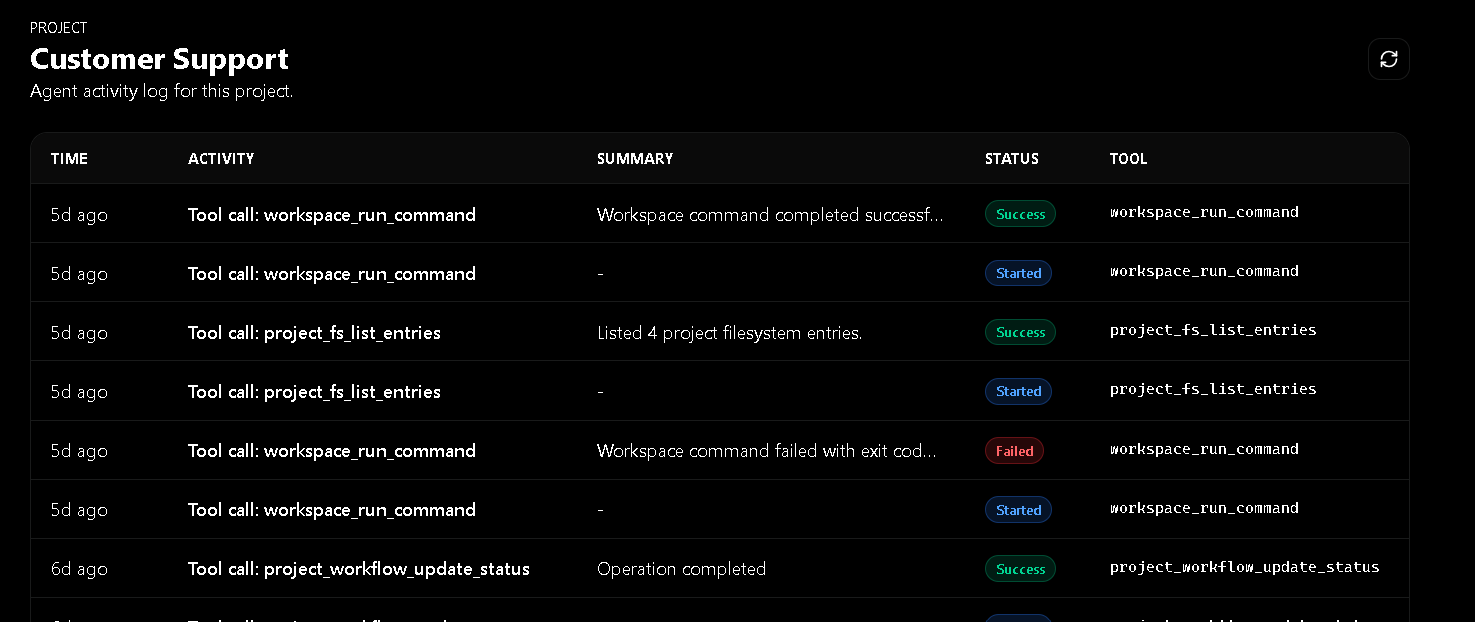
Audit Log — /spaces/projects/audit
A chronological list of recent events in the project:
- Worker tool calls (with success/failure badge)
- User actions (uploads, file edits)
- Customer/team changes
Each row has:
- Timestamp
- Event type icon
- Title
- Status badge
Useful for understanding what the worker did while you weren't watching.
Project Workflow — /spaces/projects/workflow
Each project has its own workflow — a set of automations, triggers, and integrations that define how the worker behaves when certain events happen. Workflows are fully customizable using natural language: just describe what you want to the worker, and it builds the flow for you.
What you can build
| Component | Example |
|---|---|
| Triggers | When an email arrives, when a deadline approaches, when a lead is added, on a schedule |
| Actions | Send an email, create a task, post to Slack, update a CRM field, call an API |
| Integrations | Connect Gmail, Google Calendar, Slack, Notion, Zoom, or custom webhooks |
| Conditions | Only run if the email is from a specific domain, if priority is high, if a field is empty |
| Steps | Multi-step sequences: search → filter → enrich → save → notify |
How it works
You describe what you need in plain language, and the worker creates the workflow:
"When a new lead is added to this project, search for their company on LinkedIn, enrich the contact with their role, and post a summary in the #leads Slack channel."
The workflow is then visualized as an interactive diagram showing each step, trigger, and integration. You can modify any part by asking the worker to adjust it — no code required.
Deleting a Project
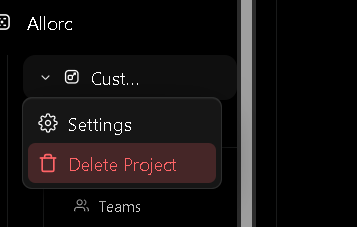
Project deletion is destructive. The flow is:
- Project Settings → Delete project (in the Danger zone).
- A confirmation dialog asks you to type
delete(literally) into a text field. - Once typed, the Delete button activates.
- Clicking it triggers a backend job that polls to completion. The project is removed from the sidebar and all its files, threads, and skills are destroyed.
Why the
deletetyping requirement? It prevents accidental clicks from destroying weeks of work.
Frequently Asked Questions
Q: How many spaces and projects can I have? A: Spaces: unlimited. Projects: 1 (trial) or 5 (Starter) total across all spaces.
Q: Can I share a project with someone else? A: Yes — invite them via the Teams tab. They get one of three roles: admin, member, viewer.
Q: Can I move a project to a different space? A: Not directly. Create a new project in the target space and copy the files. (Move is on the roadmap.)
Q: Can a worker work on multiple projects at once? A: Each thread is project-scoped, but the worker can be active in many threads across projects. The same worker uses different memory per project.
Q: What happens to my data if I delete a project? A: All files, threads, skills, customers, and team memberships are destroyed. The space remains.
Q: How do I know the worker's sandbox is healthy? A: Settings → Storage shows per-project storage usage.
Q: Can I run my own Python code in a project? A: Indirectly. The worker executes Python in the sandbox on your behalf. Ask the worker to "compute X" or "run a script that does Y", and it will.