Chat — Talking to Your AI Worker
Sending messages, attaching files, streaming responses, tool calls, threads, history, and Openloop.
Chat — Talking to Your AI Worker
The chat is the heart of Allorc. This is where you talk to your worker, watch it think, attach files, manage threads, and see everything it's doing in the background.
The Chat Screen at a Glance
The page is divided into four areas:
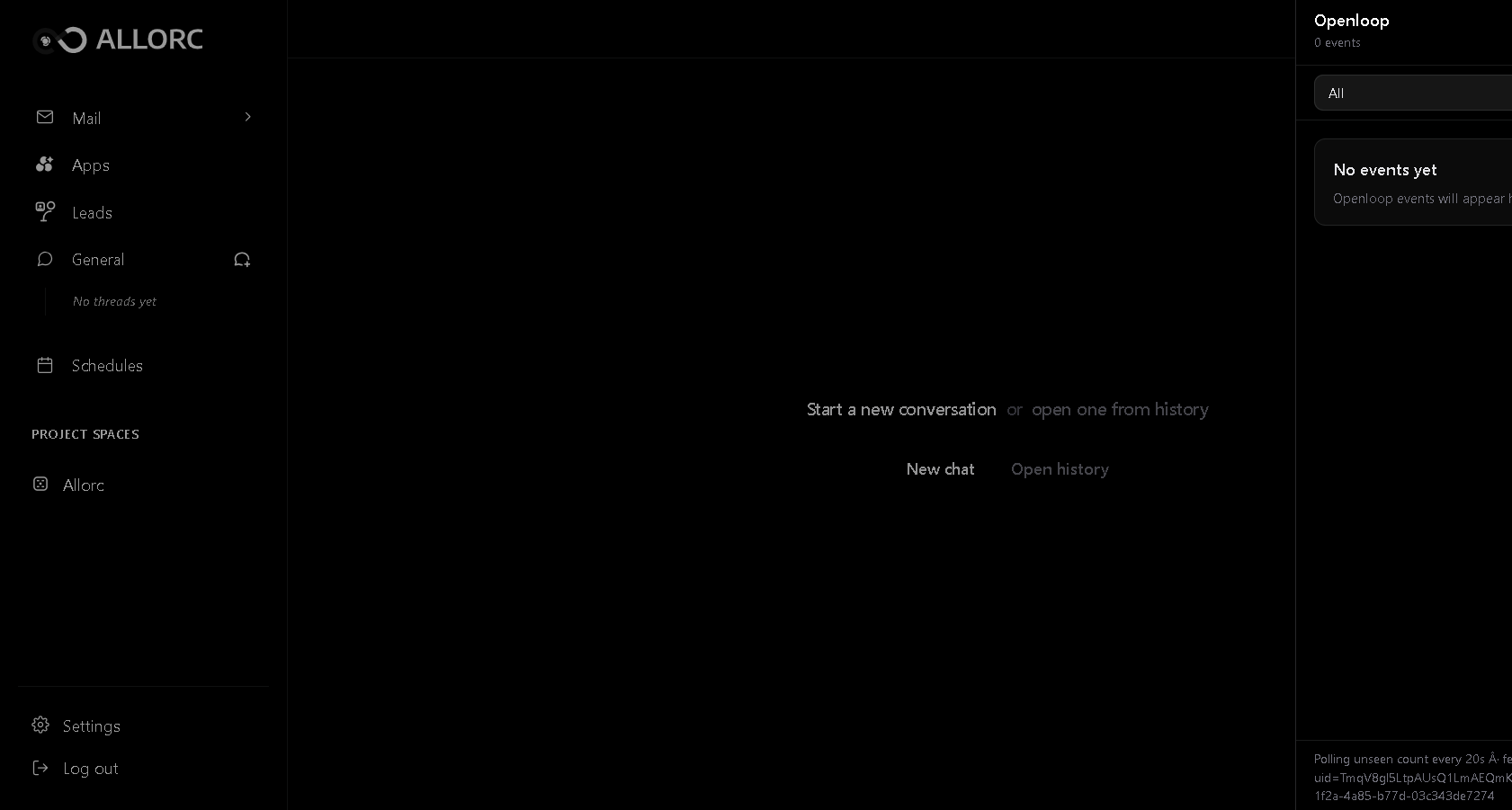
- Top bar — worker name, project breadcrumb, History button (search past threads), Openloop bell (background activity), Settings cog.
- Sidebar — Mail, Apps, Leads, Schedules, and a list of your Spaces → Projects.
- Conversation stream — your messages on the left, worker messages on the right.
- Conversation bar — attachment, model picker, message input, send.
- Side panel (right, slides in) — per-project Files, Teams, Customers tabs.
Sending a Message
The conversation bar at the bottom has four controls:

| Control | What it does |
|---|---|
| + Attach | Opens a file picker. PDFs, Office docs, CSVs, images, audio, video, markdown — all supported. |
| Model ▾ | Switches the model for this conversation in settings. (Settings → Agent) |
| Message input | The text box. Supports multi-line, paste, and Enter-to-send (Shift+Enter for newline). |
| ▶ Send | Submits the message. Disabled while the worker is responding. |
Attaching Files
Click the 📎 button (or paste/drag-and-drop) to attach a file. Allorc supports:
- Documents: PDF, DOCX, TXT, MD, PPTX
- Spreadsheets: CSV, XLSX
- Images: Will be available soon
- Audio: Will be available soon
- Video: Will be available soon
Once attached:
- A thumbnail chip appears above the input bar.
- The worker sees the file and can read/quote/answer questions about it.
- Files are processed and indexed so the worker can reference them in future conversations.
Why upload through the conversation bar? It uses the same path the worker uses, so the document is immediately available for the worker to query.
Streaming Responses
When the worker is responding, you see a few things happening in real time:
- Status text above the message: "Thinking…", "Searching leads…", "Drafting email…".
- Token-by-token text in the message bubble (markdown is rendered live).
- Tool call cards appear under the message for each action the worker takes.
- Reasoning block (when enabled by the model) — a collapsible "thinking" section.
If the response is partial (network blip), the stream auto-reconnects and resumes from the last received token.
Threads — Past Conversations
Every conversation is a thread scoped to a project. Threads are listed in two places:
- Sidebar — under each Space → Project, a sub-list of recent threads.
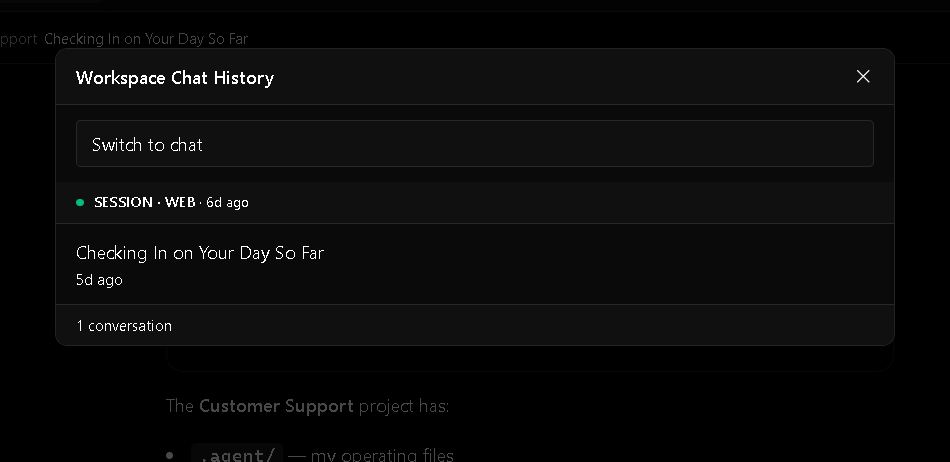
- History button (top bar) — opens a full Chat History Modal that searches across all your threads.
Switching Threads
To switch threads, you can:
- Click any thread in the sidebar under the relevant project.
- Open History and pick one.
- Use the breadcrumb in the top bar to navigate to a different project, then pick a thread.
The chat area updates immediately. Your current draft message is preserved when you switch (it stays in the conversation bar across thread changes).
Openloop — Background Activity Feed
The bell icon in the top bar opens Openloop — a real-time feed of everything the worker is doing across channels:
- Chat
- Calendar
- Webhooks
Each entry has:
- A source icon (chat bubble, envelope, calendar, etc.)
- A title (e.g. "Sent follow-up to John Smith")
- A status badge:
in_progress/completed/failed/pending - A priority filter at the top of the panel
- A result filter (success / failed)
Unread items show a count badge on the bell.
Why does this exist? Most worker activity happens while you're not watching chat — the worker can send a follow-up email, schedule a meeting, or query a webhook. Openloop is the "what's my worker doing" view.
Reasoning, Plans, and Sources
When the worker uses reasoning (chain-of-thought) or plans a multi-step task, you'll see dedicated UI blocks.
Errors and Recovery
If the worker fails mid-stream (model error, tool error, network drop), the message shows a red error banner with a "Retry" button. Clicking retry re-runs the same message with the worker.
If the worker has exhausted your AI credits, a different banner appears:
- Icon: credit card
- Text: "You've used all your AI credits for this cycle."
- Action: Upgrade → goes to
/subscribe
Project-Scoped Chat
When a project is selected in the breadcrumb, the chat is scoped to that project. That means:
- The worker's memory for this thread pulls from the project's context, files, and skills.
- Tool calls are executed within the project's sandbox.
- Files, customers, and skills referenced in chat belong to the project.
If the project environment isn't ready yet, the chat shows a status message with a retry button until setup completes.
Voice (Speech) — Optional
If voice is enabled on your plan, the conversation bar has a microphone icon. Click to start a voice session:
- Browser asks for microphone permission (one time).
- Speak your message; the worker streams the transcript and a voice reply.
- Voice is optional and can be enabled in Settings.
Frequently Asked Questions
Q: Can the worker see my previous chats? A: Yes, but only if they're in the same project. The worker has long-term memory of a project's conversations, files, customers, and skills.
Q: Why did my response stop mid-sentence? A: Either the model errored (Retry button) or your credits ran out (Upgrade banner).
Q: Can I delete a thread? A: This feature is under development and will be available soon.
Q: How do I know the worker is actually doing the work, not just hallucinating? A: Watch the tool call cards. Each shows the action the worker took and its result.
Q: How long does the worker keep context? A: As long as the project exists. The worker's memory is project-scoped, persistent, and grows over time.
Q: Can I talk to the worker across projects? A: Yes — by default the chat is project-scoped, but you can switch projects via the breadcrumb in the top bar. The worker reads context only from the currently selected project.